There have been on several occasions where our software is operating with a lag and slowing down the functionality. The article below is to assist in preventing this lag on any of our software titles.
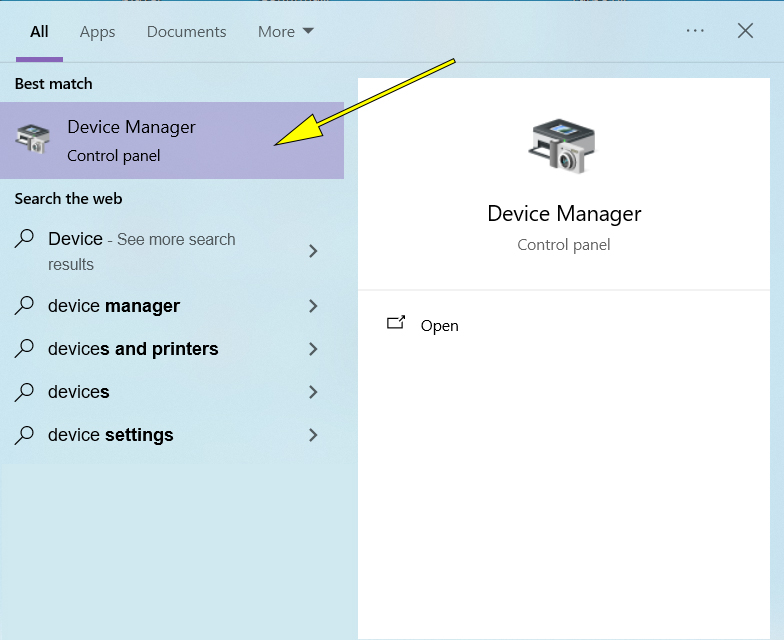
Step 1: In the Windows search bar, search for "Device Manager" and click to open the application.
Step 2: Look through your devices until you see "Univeral Serial Bus controllers" and expand the group. Inside you will see several USB controller devices. The next steps will need to be applied to each of these devices. If some of these devices differ from what you see on your screen, simply go through each one separately.
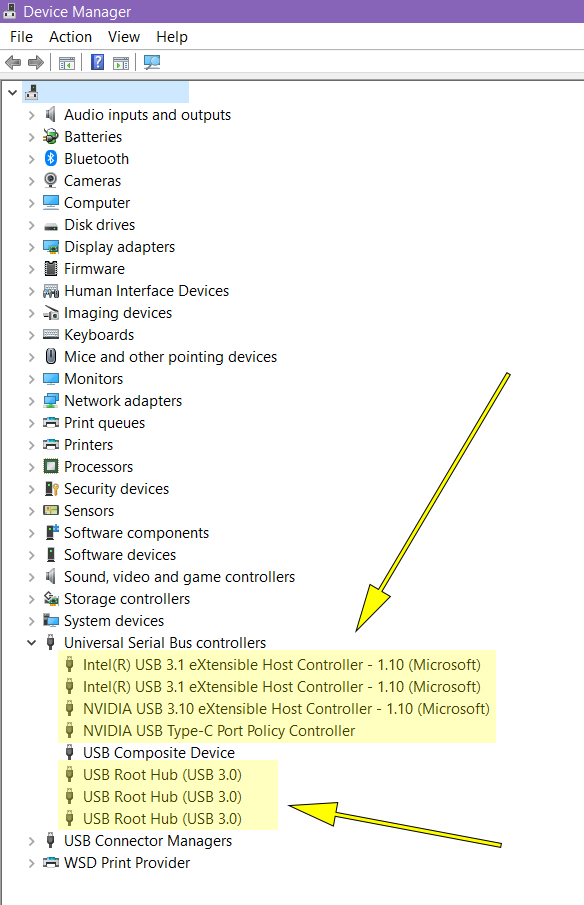
Step 3: Right click on one of the devices and click properties.

Step 4: When the "Properties" dialog box appears, click on the "Power Management" tab and uncheck the box labeled "Allow the computer to turn off this device to save power".
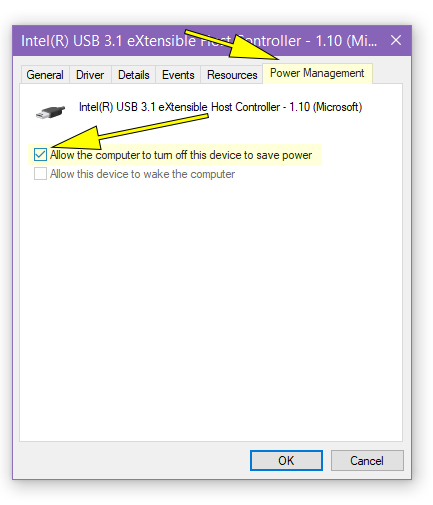
Step 5: Do this for all devices under "Universal Serial Bus controllers". If the "Power Management" tab is not available skip that device. After all devices are completed, Restart the Computer.
What does "Allow the computer to turn off this device to save power" do?
When this box is checked (enabled):
- Windows is allowed to temporarily power down the USB device (or the entire USB hub) when it detects the device is idle/not being actively used.
- This is part of Windows' broader power-saving strategy, especially useful on laptops to extend battery life.
- The device enters a low-power or suspended state (USB Selective Suspend).
When this box is unchecked (disabled):
- Windows is prevented from powering down that specific USB device/hub.
- The device stays powered on at all times, even when idle.
This option... when checked... slows down and lags the software since the software operates using the USB protocol. Turning it off and restarting the computer returns the software to its normal speed.
|
 Cart is empty


